
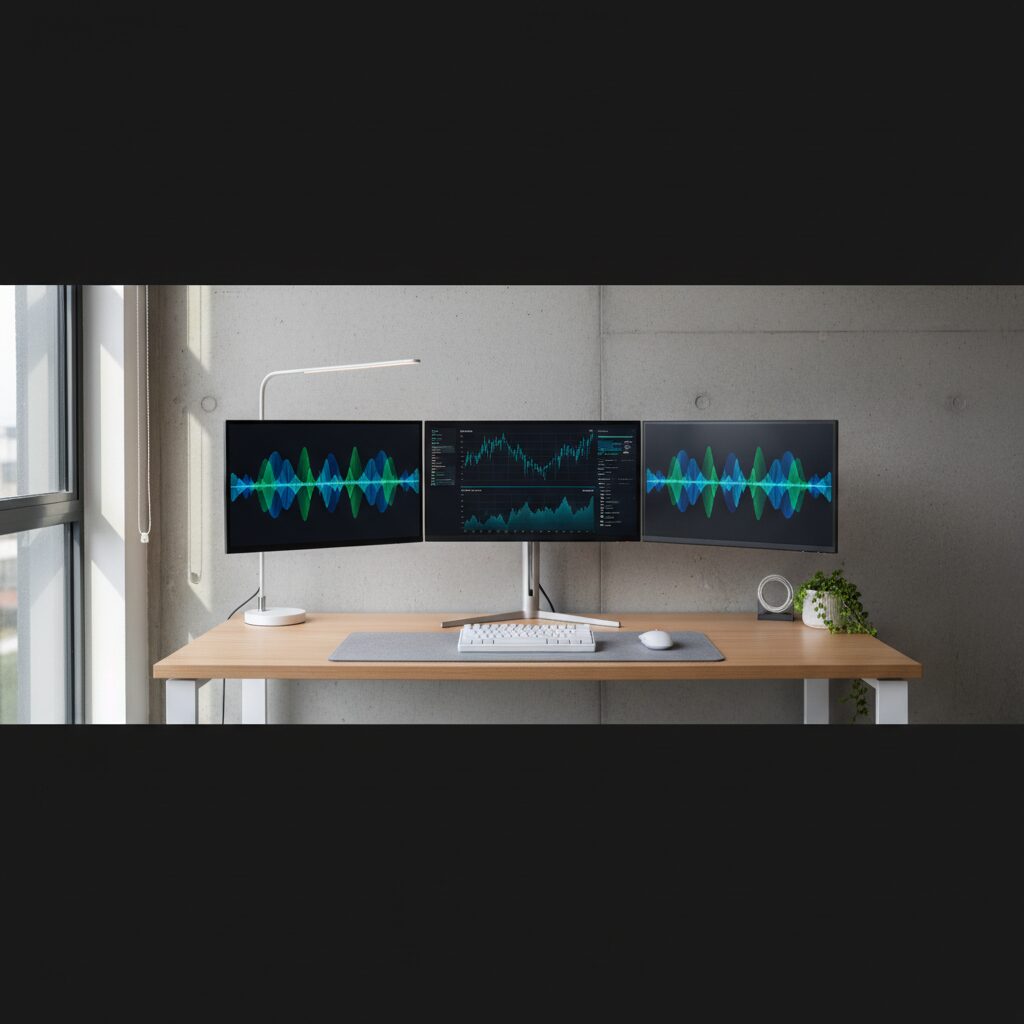
A multiple monitor setup connects or more displays to a single computer, allowing you to spread your work across a larger visual workspace. Whether you’re a remote worker, gamer, video editor, or developer, using more than one screen can fundamentally change how you interact with your computer.
This guide breaks down everything you need to know, from the basics of getting started to choosing the right configuration for your specific needs.
Quick Answer
A multiple monitor setup uses two or more displays connected to one computer to expand your desktop workspace. It improves multitasking by letting you view different applications simultaneously without switching windows. Most modern computers and laptops support at least two monitors through HDMI, DisplayPort, or USB-C connections, requiring minimal additional hardware.
Key Takeaways
- A dual monitor setup is the most common starting point, offering a strong balance between cost and productivity
- Your graphics card or integrated GPU determines how many monitors your system can support
- DisplayPort and HDMI are the most widely used connection types for external monitors
- Monitor stands, arms, and desk space should be planned before purchasing additional displays
- Matching resolution and refresh rate across monitors creates a more consistent visual experience
- Windows and macOS both support multiple displays natively with no extra software required Is a Multiple Monitor Setup?
A multiple monitor setup, also called a multi-display or dual monitor configuration, connects more than one screen to a single computer. Each display can show different content simultaneously, effectively giving you a larger, more flexible workspace.
This is from screen mirroring, where both displays show the same image. In an extended display setup, your desktop stretches across all connected monitors.
Why Use Multiple Monitors?
Productivity is the primary reason most people invest in additional displays. Research consistently shows that workers using two or more monitors complete tasks faster and with fewer errors compared to single-screen users.
Common use cases include:
- Keeping email or Slack open on one screen while working on another
- Referencing documentation while coding or writing
- Monitoring dashboards or analytics in real time
- Editing video or audio with a timeline on one screen and a preview on another
- Gaming with a primary screen and a secondary display for guides or communication tools
For a deeper look at how screen size and workspace layout affect daily output, check out this guide on how monitor size impacts productivity.
How Many Monitors Can Your Computer Support?
The number of monitors your system can run depends on your graphics card (GPU). Integrated graphics found in most laptops and budget desktops typically support two displays. Dedicated GPUs can often handle three to six monitors depending on the model.
To check your system’s capabilities:
- Open Device Manager (Windows) or System Information (Mac)
- Identify your GPU model
- Look up the manufacturer’s specifications for maximum display output
Most modern desktops with a mid three monitors without additional hardware. If you need more, a secondary GPU or a USB display adapter can extend that limit.
Choosing the Right Connection Type
Matching the right cable or port to your monitor matters for image quality and compatibility.
| Connection Type | Max Resolution | Common Use |
|---|---|---|
| HDMI 2.0 | 4K @ 60Hz | General use, TVs |
| DisplayPort 1.4 | 4K @ 144Hz | Gaming, professional work |
| USB-C / Thunderbolt | 4K @ 60Hz+ | Laptops, compact setups |
| VGA | 1080p | Legacy monitors only |
DisplayPort is generally preferred for high-refresh-rate or high-resolution setups. HDMI is more universally available well for most standard configurations. VGA should be avoided unless you’re working with older hardware.
If you’re comparing technologies for your setup, this breakdown of monitor connection types and display standards is worth reading.
Setting Up Multiple Monitors on Windows and macOS
Both major operating systems support multi-monitor configurations out of the box.
Windows Setup
- Connect your monitors using the appropriate cables
- Right-click the desktop and select Display Settings
- Click Detect if monitors aren’t automatically recognized
- Arrange the displays to match your physical layout
- Set your preferred primary monitor and choose Extend these displays
macOS Setup
- Connect your external display
- Open System Settings > Displays
- Drag the display icons to match your physical arrangement
- Use the Arrangement tab to set your primary display
Both systems allow you to independently adjust resolution per display.
What to Look for When Buying a Second Monitor
Not all monitors pair well together. Here are the key specs to consider when adding a second display:
- Resolution: Matching your primary monitor’s resolution creates visual consistency
- Panel type: IPS panels offer better color accuracy and wider viewing angles than TN panels
- Refresh rate: Mismatched refresh rates won’t cause problems but can feel incons fast-moving tasks
- Bezels: Thin bezels reduce visual interruption between screens
- Adjustability: Height-adjustable stands or VESA mount compatibility gives you ergonomic flexibility
For a curated overview of display options worth considering, this article on the best monitors for productivity covers a range of use cases and budgets.
Ergonomics and Physical Setup
Getting the physical arrangement right is just as important as the technical configuration.
- Eye level: The top of each monitor should be at or slightly below eye level
- Distance: Sit approximately 20 to 30 inches from your screens
- Angle: Position side monitors at a slight inward angle to reduce neck strain
- Monitor arms: A dual monitor arm frees up desk space and makes height and angle adjustments easy
Poor ergonomic setup can lead to neck, shoulder, and eye strain over time. Taking the time to position your displays correctly pays off in comfort and focus. Learn more about display positioning in this guide to monitor ergonomics and proper screen placement.
Common Mistakes to Avoid
- Mismatching resolutions significantly can make text look inconsistent across screens
- Ignoring cable quality can cause signal issues, especially at higher resolutions
- Not updating GPU drivers is a common cause of display detection problems
- Buying a monitor without checking port compatibility leads to unnecessary adapter purchases
If your second monitor isn’t being detected, start by updating your GPU drivers and trying a different cable or port before assuming there’s a hardware fault.
For troubleshooting display issues in more detail, this resource on fixing common monitor problems covers the most frequent causes and solutions.
Conclusion
A multiple monitor setup is one of the most practical upgrades you can make to a computer workstation. The barrier to entry is low, and the workflow benefits are immediate and measurable. Understanding your GPU’s limits, choosing the right connection type, and setting up your displays ergonomically will help you get the most out of the configuration.
Whether you’re starting with two screens or building a more advanced multi-display workstation, theals covered here apply across most use cases and
FAQs
Do I need a special graphics card for multiple monitors? modern computers support at least two monitors through integrated graphics. For three or more displays, a dedicated GPU is typically required. Check your GPU’s specifications to confirm the maximum number of supported outputs.
Can I use monitors with different sizes in a multi-monitor setup?
Yes, you can mix monitors of different sizes. Windows and macOS both allow you to scale each display independently, though matching resolutions generally creates a more seamless experience.
Does a multiple monitor setup slow down your computer?
Running multiple monitors adds a small load to your GPU, but for most everyday tasks it has no noticeable impact on performance. Demanding tasks like gaming or 4K video editing may see minor differences with additional displays active.
Is a dual monitor setup better than an ultrawide monitor?
It depends on your workflow. Dual monitors offer physical separation between tasks and allow independent positioning, while anless single screen. Developers and multitaskers often prefer dual monitors; creative professionals often prefer ultrawides.
What is the best layout for a dual monitor setup?
The most common layout places both monitors side by side at the same height, with the primary monitor directly in front of you. If you use one screen significantly more than the other, centering the primary and angling the secondary is a comfortable alternative.
This article was last updated on April 21, 2026 .
