
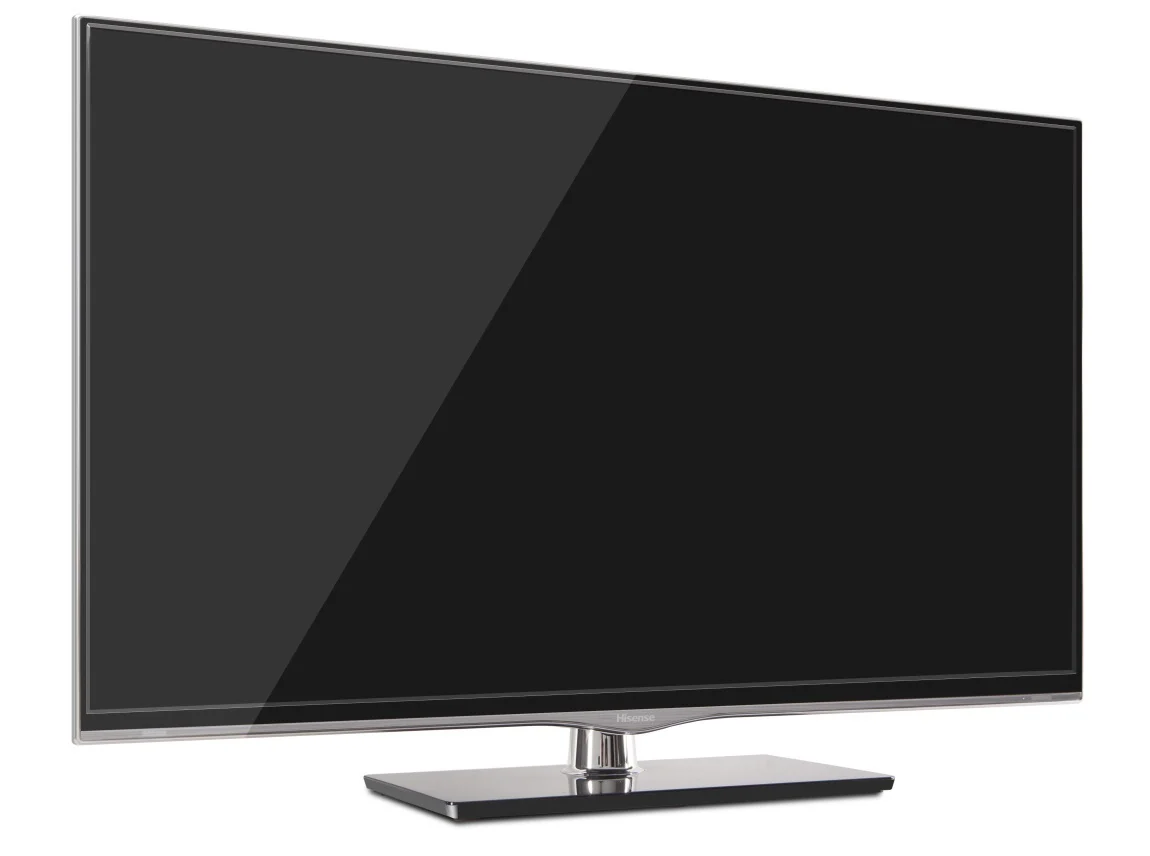
Using a large-screen TV as a coding monitor is a setup that more developers are exploring, especially as remote work and home office upgrades have become priorities. Hisense TVs, known for their competitive pricing and solid display specs, are a common choice for this kind of dual-purpose setup.
This guide covers what it’s actually like to use a Hisense TV as a monitor for coding day-to-day, including the real advantages, the genuine limitations, and who this setup actually makes sense for.
Quick Answer
Using a Hisense TV as a monitor for coding is entirely workable, particularly for developers who need a large display on a budget. However, text clarity, input lag, and pixel density are real concerns depending on the model and screen size. A 4K Hisense TV at 43 inches or smaller is the most practical choice for code readability at a normal desk distance.
Key Takeaways
- 4K resolution is essential when using a Hisense TV as a coding monitor to maintain readable text at larger screen sizes
- Pixel density (PPI) drops significantly on larger panels, making text appear softer compared to dedicated monitors
- Input lag on most Hisense TVs is higher than purpose-built monitors, though Game Mode can reduce this noticeably
- Viewing distance matters more with a TV than with a monitor, and desk setups may require adjustment
- Hisense ULED and QLED models offer better color accuracy and brightness, which helps reduce eye strain during long coding sessions
- Cost-per-inch is a major advantage, making Hisense TVs attractive for developers who want a large display without spending on a premium monitor
Is Using a Hisense TV as a Monitor for Coding a Good Idea?
A Hisense TV can be a functional coding display, but it comes with trade-offs that depend heavily on the specific model and screen size you choose.
The core challenge with any TV used as a monitor for coding is pixel density. A 554K Hisense TV has roughly 80 PPI (pixels per inch), compared to a 27-inch 4K monitor that delivers around 163 PPI. That difference is visible in how sharp your fonts and UI elements look when you’re seated two to three feet away.
If you’re considering a 43-inch or smaller 4K Hisense model, the PPI climbs closer to 100 to 102, which is more usable for reading code at a standard desk distance.
Text Clarity and Readability for Developers
Text rendering is arguably the most important factor for coding, and this is where TV displays have historically struggled compared to monitors.
Most Hisense TVs use panel calibration designed for video content, not text rendering. This can result in slightly softer or less crisp text, especially at smaller font sizes. However, there are practical solutions:
- Increase font size in your code editor (VS Code, JetBrains IDEs, etc.) to compensate
- Enable ClearType or font smoothing in Windows display settings
- Adjust sharpness settings on the TV itself, as factory defaults are often too aggressive for text
- Use a dark theme in your editor, which tends to look better on TVs than light themes
On 4K Hisense models like the U6 or U8 series, text readability improves considerably compared to 1080p panels. If you’re coding on a 1080p Hisense TV at 40 or more inches, the experience becomes noticeably poor for long sessions.
Input Lag: Does It Matter When Coding?
Input lag is the delay between a keystroke or mouse movement and the display updating. For coding, this matters less than it would for competitive gaming, but it still affects how responsive your workflow feels.
Most Hisense TVs have input lag in the range of 15 to 30ms in standard mode. Enabling Game Mode on Hisense TVs typically reduces this to under 15ms, which is acceptable for productivity work.
For comparison, dedicated monitors designed for productivity often operate at 5ms or less. The difference is unlikely to bother most developers, but if you’re someone who notices display latency in everyday computing, it may be a subtle frustration over time.
If you’re curious about how refresh rates and display settings interact with your setup, this guide on why your 144Hz monitor might only show 60Hz offers useful technical context.
Screen Size and Viewing Distance for a Desk Setup
One of the most overlooked aspects of using a Hisense TV as a coding monitor is the physical setup. TVs are designed to be viewed from across a room, not from two to three feet away at a desk.
At close range, a large TV can cause neck strain because you have to turn your head to see the full screen. A 43-inch TV is generally the practical upper limit for most desk setups, though some developers with wide desks or monitor arms prefer 50 inches if they sit further back.
Recommended sizing for desk use:
- 32-inch Hisense 4K: Good PPI, comfortable at desk distance, limited screen real estate
- 43-inch Hisense 4K: The sweet spot for most developers, balancing size and readability
- 50-inch and above: Better suited for a standing desk or a setup where you sit further back
Color Accuracy and Eye Strain During Long Sessions
Coding sessions often run long, and display quality directly affects eye comfort. Hisense’s higher-end models, particularly the U8 series with ULED technology, offer strong peak brightness and decent color accuracy out of the box.
For coding specifically, color accuracy matters less than it would for design work, but brightness uniformity and blue light output are worth considering. Most Hisense TVs include a low blue light or eye comfort mode that reduces eye strain during extended use.
Adjusting the TV’s brightness down from its default setting is almost always necessary when using it at a desk, since factory calibration assumes a dimly lit living room viewed from a distance.
You might also find it useful to explore whether a monitor can be used as a standalone display you’re weighing your options between a TV and a dedicated monitor for your workspace.
Connectivity and Compatibility
Hisense TVs connect to computers via HDMI, and most modern models support HDMI 2.0 or 2.1. This allows for 4K at 60Hz, which is the standard most developers will want.
A few compatibility points to check before committing to this setup:
- Confirm your GPU supports 4K output at 60Hz
- Use a high-quality HDMI 2.0 or 2.1 cable to avoid signal issues
- Check that the HDMI port supports PC Mode or has a dedicated PC input label, as this can improve text rendering and reduce post-processing
- Windows and macOS may require manual resolution and scaling adjustments after connecting
For a practical look at how display specs translate to everyday use, the Dell P2219H monitor review provides a useful comparison point for what a purpose-built monitor delivers in a similar price range.
How Does a Hisense TV Compare to a Dedicated Monitor for Coding?
| Feature | Hisense TV (43″ 4K) | Dedicated Monitor (27″ 4K) |
|---|---|---|
| Pixel Density | ~102 PPI | ~163 PPI |
| Input Lag | 10-15ms (Game Mode) | 1-5ms |
| Text Sharpness | Good with tuning | Excellent out of box |
| Screen Real Estate | Very large | Moderate |
| Price per Inch | Lower | Higher |
| Eye Strain Risk | Higher at close range | Lower at desk distance |
This comparison makes clear that a dedicated monitor wins on technical display metrics, but a Hisense TV offers meaningful advantages in size and value when set up thoughtfully.
Who Should and Should Not Use a Hisense TV for Coding
Good fit for:
- Developers on a tight budget who want a large display
- Those who also use the display for streaming or gaming after hours
- Coders who prefer a large canvas for multi-window or split-screen workflows
- Anyone working at a standing desk with more viewing distance
Not a great fit for:
- Developers who prioritize sharp, high-PPI text rendering
- Those who need ultra-low input lag for a snappy workflow
- Anyone working in a bright room where glare is an issue (most Hisense TVs have glossy or semi-glossy panels)
- Professionals doing color-critical work alongside coding
Conclusion
Using a Hisense TV as a monitor for coding is a practical option under the right conditions, primarily when you choose a 4K model at 43 inches or smaller and take the time to adjust settings for desktop use. The trade-offs in pixel density, input lag, and text clarity are real but manageable for most developers, especially given the cost advantage over dedicated large-format monitors.
If you’re a developer looking for a budget-friendly large display and you’re willing to dial in the settings, a Hisense 4K TV is a reasonable choice. If sharp text and low latency are non-negotiable, a purpose-built monitor will serve you better.
FAQs
Can I use any Hisense TV as a computer monitor for coding?
Technically yes, but 4K models are strongly recommended. A 1080p Hisense TV at larger screen sizes produces noticeably soft text that becomes fatiguing during long coding sessions.
Does Hisense TV have a PC mode for use as a monitor?
Many Hisense models include a PC Mode or allow you to label an input as a PC source, which disables some video processing and improves text sharpness. Check your specific model’s settings menu.
What resolution should I use on a Hisense TV for coding?
Always use native 4K (3840×2160) resolution when available. Running a 4K TV at 1080p results in blurry text due to non-native scaling.
Is input lag on a Hisense TV noticeable when typing code?
For most developers, input lag in Game Mode on a Hisense TV is not disruptive during coding. It becomes more noticeable if you’re used to high-refresh-rate monitors with very low latency.
How far should I sit from a Hisense TV when using it for coding?
For a 43-inch 4K Hisense TV, a viewing distance of about 3 to 4 feet is generally comfortable. Larger screens benefit from sitting further back to reduce neck movement and eye strain.
This article was last updated on May 14, 2026 .
