
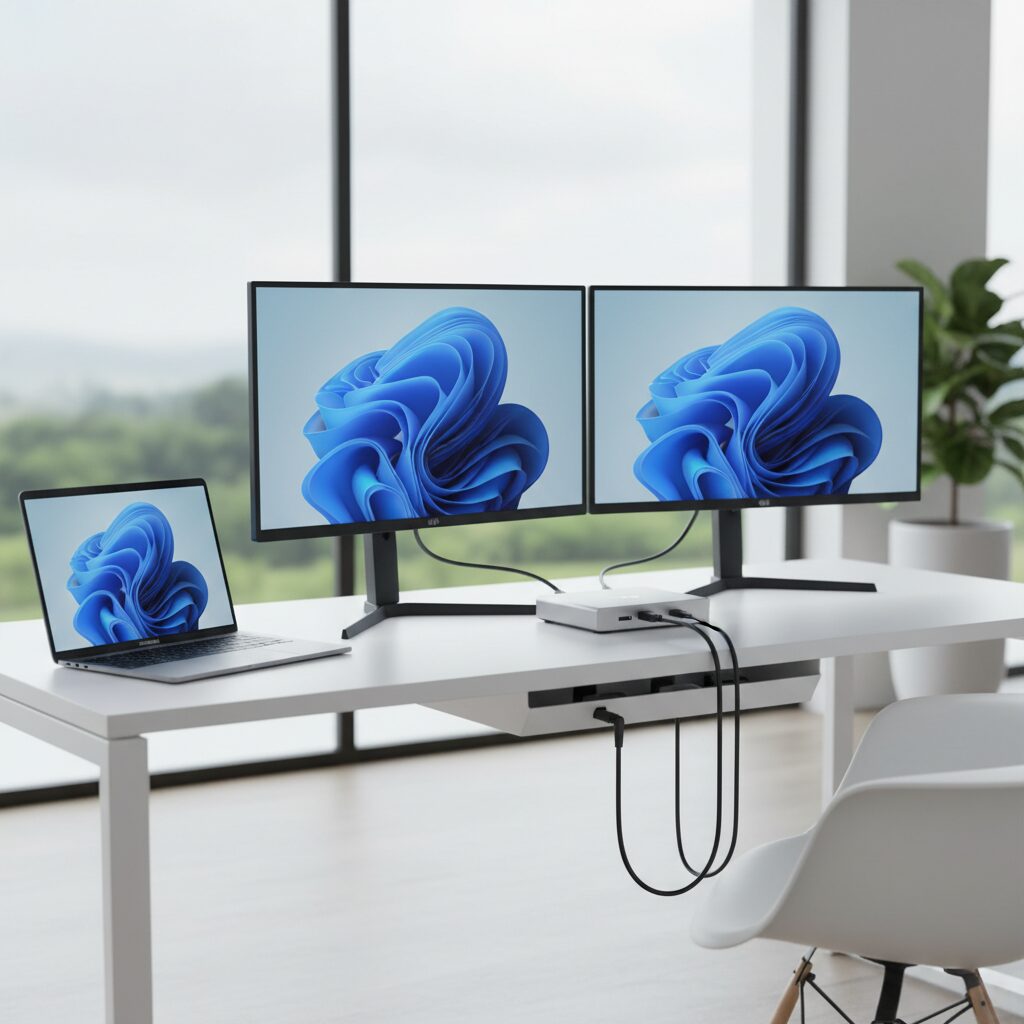
Setting up dual monitors with HDMI is one of the most practical upgrades you can make to a desktop or laptop workspace. Whether you’re a remote worker, gamer, or content creator, a second screen dramatically expands your productivity and multitasking ability.
Most modern computers support dual monitor setups out of the box. HDMI is the most common connection type available on both monitors and computers, making it the go-to cable choice for the majority of users.
Quick Answer
To set up dual monitors with HDMI, connect each monitor to an available HDMI port on your computer or use an HDMI splitter or adapter if needed. Then open your display settings (Windows: right-click desktop > Display Settings; Mac: System Settings > Displays) and configure the arrangement, resolution, and display mode.
Key Takeaways
- Most desktops and laptops support dual monitors via HDMI, but you may need a docking station or adapter if ports are limited
- Windows and macOS both have built-in display settings to configure your dual monitor layout
- HDMI supports both video and audio signals, making cable management simpler
- Using “Extend” mode gives you the most workspace; “Duplicate” mode mirrors your screen
- Mismatched resolutions or refresh rates between monitors can cause visual inconsistencies
- If your 144Hz monitor is only showing 60Hz, your HDMI cable version or port may be the limiting factor
What You Need Before You Start
Before connecting anything, confirm you have the right equipment on hand.
Required items:
- Two monitors with HDMI input ports
- A computer with two HDMI output ports, or one HDMI port plus an adapter
- Two HDMI cables (standard HDMI 2.0 cables work for most setups)
- A flat, stable surface or monitor stands/mounts
Optional but helpful:
- A USB-C to HDMI adapter or DisplayPort to HDMI adapter for laptops with limited ports
- A powered HDMI splitter (for extending, not just duplicating)
- A docking station if you’re working from a laptop regularly
How to Connect Two Monitors Using HDMI
Step 1: Check Your Computer’s Video Output Ports
Look at the back of your desktop tower or the sides of your laptop. Count the available HDMI ports. Most desktop PCs have at least one HDMI port on the motherboard and additional ports on a dedicated GPU.
If you only have one HDMI port, you can still run dual monitors using a combination of HDMI and DisplayPort, HDMI and VGA, or by using a USB-C adapter. A standalone monitor can also help you understand what display configurations are possible for your setup.
Step 2: Connect Each Monitor
Plug one HDMI cable into the first monitor and the corresponding HDMI output on your computer. Repeat for the second monitor. Power on both monitors before adjusting any settings.
Step 3: Configure Display Settings on Windows
- Right-click on the desktop and select Display Settings
- Scroll to the Multiple Displays section
- Click Detect if the second monitor is not automatically recognized
- Choose your display mode: Extend, Duplicate, or Show only on 1 or 2
- Drag and rearrange the monitor icons to match your physical setup
- Set the resolution and refresh rate for each monitor individually
Step 4: Configure Display Settings on macOS
- Open System Settings and go to Displays
- macOS should detect both monitors automatically
- Drag the display icons to match your physical arrangement
- Use the Arrangement tab to set which screen is primary
- Adjust resolution and refresh rate per display as needed
Extend vs. Duplicate: Which Mode Should You Use?
Extend mode treats both monitors as one large desktop. Your mouse moves freely between screens, and you can place different windows on each display. This is the best option for productivity, coding, writing, or gaming with a secondary screen for chat or reference.
Duplicate mode mirrors the same image on both monitors. This is useful for presentations or when you need others to see exactly what you see. It does not add screen real estate.
For most users, Extend is the recommended choice.
Common Problems and How to Fix Them
Second Monitor Not Detected
- Make sure the HDMI cable is fully seated at both ends
- Try a different HDMI cable to rule out a faulty connection
- Restart your computer with both monitors connected
- In Windows Display Settings, click Detect manually
- Update your GPU drivers, as outdated drivers are a frequent cause of detection failure
Wrong Resolution or Blurry Image
Each monitor should be set to its native resolution. Go into Display Settings, select the monitor in question, and choose the recommended resolution from the dropdown. Forcing a non-native resolution will always result in a softer, less sharp image.
Refresh Rate Mismatch
If one monitor runs at 144Hz and the other at 60Hz, Windows will allow each to run at its own refresh rate independently. However, if your high-refresh monitor is capped at 60Hz, the HDMI cable version or port type may be the issue. Standard HDMI 1.4 cables cap out at 60Hz for 1080p. You’ll need an HDMI 2.0 or higher cable for 144Hz at 1080p. This is a common issue worth understanding, especially if you’ve invested in a high-refresh panel.
Audio Playing from Wrong Monitor
When using HDMI, audio is carried through the cable. If sound is playing from the wrong monitor or not at all, go to Sound Settings, select your preferred output device, and set it as the default.
Can a Laptop Run Dual Monitors via HDMI?
Yes, but with limitations. Most laptops have only one HDMI port, so you can typically connect one external monitor directly To add a second, you’ll need either a USB-C to HDMI adapter, a Thunderbolt dock, or a dedicated docking station.
Some budget laptops with integrated graphics only may not support more than one external display at all. Check your laptop’s specifications before purchasing additional hardware. Understanding which TV brand lasts the longest can also give you insight into display longevity if you’re considering using a TV as a second monitor.
Does Monitor Quality Matter in a Dual Setup?
Absolutely. Mixing two monitors with very different panel types, color profiles, or brightness levels can be distracting during everyday use. Ideally, both monitors should have similar brightness and color temperature settings. You don’t need identical models, but keeping specs reasonably close reduces eye strain during extended sessions.
If you’re considering a specific a dual setup, a detailed review like the Dell P2219H monitor review can help you evaluate whether a given panel suits your workspace needs.
Conclusion
Setting up dual monitors with HDMI is straightforward when you have the right cables, ports, and display settings configured correctly. The most common issues involve port availability, cable version limitations, and display configuration choices, all of which are easy to resolve with the steps outlined above.
Whether you’re extending your workspace for productivity or setting up a gaming station, a dual monitor HDMI setup delivers real, immediate benefits with minimal technical complexity.
FAQs
Can I use two HDMI cables to connect two monitors to one computer?
Yes, if your computer has two HDMI output ports, you can plug one cable into each and configure both displays in your operating
This article was last updated on April 22, 2026 .
