
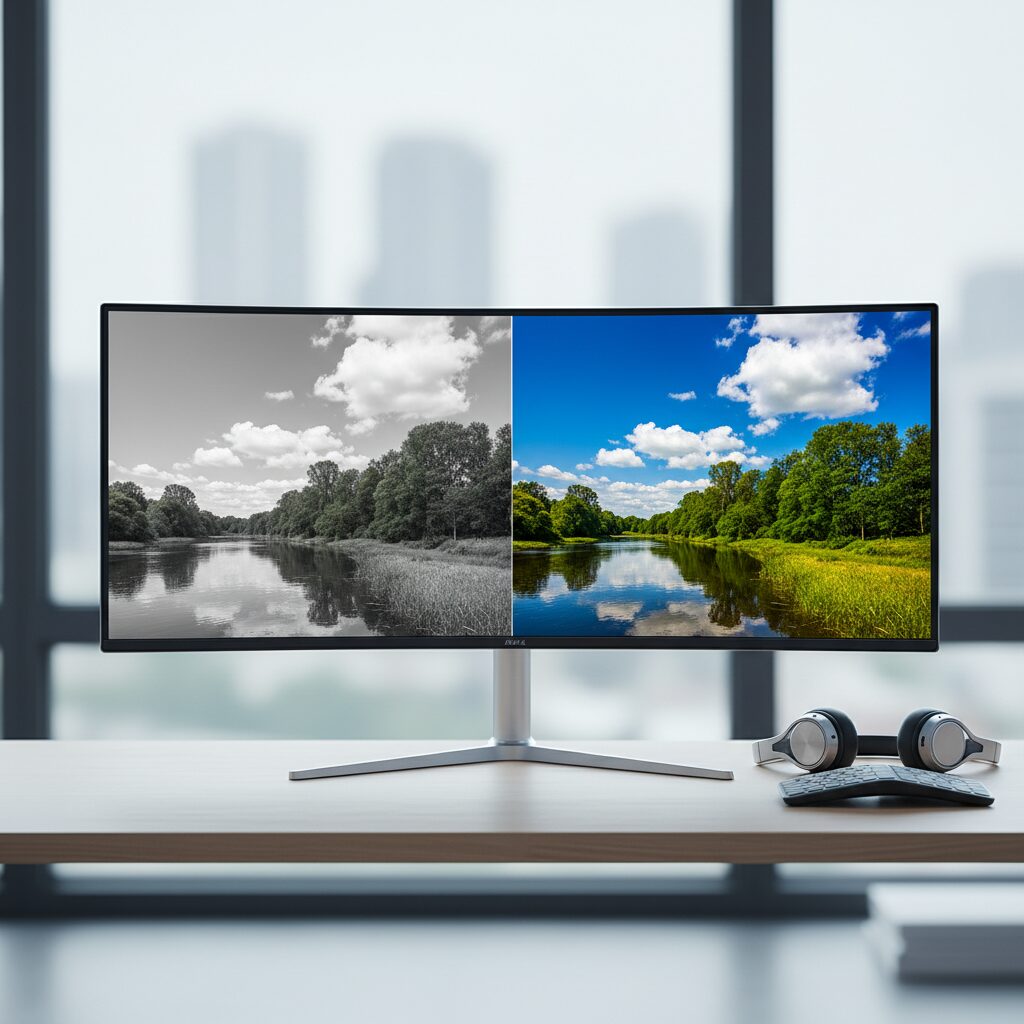
You just unboxed a shiny new HDR monitor, plugged everything in, and instead of the vivid, punchy colors you expected, everything looks pale, flat, and gray. This is one of the most common frustrations with HDR displays, and the good news is that it almost always comes down to a settings problem rather than a hardware defect.
Understanding why this happens can save you hours of troubleshooting and help you get the most out of your display investment.
Quick Answer: Colors look washed out or gray on an HDR monitor because HDR mode is either not properly enabled in Windows, the monitor is receiving an SDR signal while HDR processing is active, or the wrong color output format Fixing it usually requires enabling HDR in Windows display settings and ensuring your GPU is outputting the correct color format and bit depth.
Key Takeaways
- HDR must be enabled in both Windows settings and on the monitor itself to work correctly
- A mismatch between SDR content and active HDR processing is the most common cause of washed-out colors
- Your GPU output settings, cable type, and color format all directly affect how colors are rendered
- Most HDR monitors require a DisplayPort 1.4 or HDMI 2.0/2.1 cable to carry a full HDR signal
- Windows HDR mode can make SDR content look worse if calibration settings are not adjusted
- Checking your monitor’s OSD (on-screen display) menu is often the fastest way to diagnose the issue
Why HDR Colors Look Washed Out: The Core Problem
The most common reason colors appear washed out on an HDR monitor is a signal mismatch. When Windows has HDR enabled but the content being displayed is standard dynamic range (SDR), the operating system has to tone-map that SDR content into the HDR color space. If this process is not calibrated correctly, SDR content looks pale and desaturated compared to what you would see on a regular monitor.
This is notect. It is a fundamental challenge of HDR implementation on Windows, and it affects many users across different monitor brands and GPU manufacturers.
HDR Is Not Enabled Correctly in Windows
How to Enable HDR in Windows 11 and Windows 10
Windows does not automatically enable HDR just because your monitor supports it. You need it on manually
Steps to enable HDR in Windows 11:
- Open Settings and go to System, then Display
- Select your HDR-capable monitor
- Toggle “Use HDR” to On
- Open “HDR video streaming” and adjust the SDR content brightness slider to improve SDR appearance
Steps to enable HDR in Windows 10:
- Go to Settings, then Display, then Windows HD Settings
- Toggle “Play HDR games and apps” to On
- Adjust the “SDR content appearance” slider upward if SDR looks dim or washed out
If the toggle is grayed out, your monitor may not be recognized as HDR-capable, which points to a cable or resolution issue.
The Wrong Cable Is Being Used
Does Your Cable Support HDR?
This is a surprisingly common oversight. Not all cables carry enough bandwidth to transmit a full HDR signal at your monitor’s native resolution and refresh rate.
Minimum cable requirements for HDR:
- HDMI 2.0 or higher for 4K HDR at 60Hz
- HDMI 2.1 for 4K HDR at 120Hz or higher
- DisplayPort 1.4 for high refresh rate HDR at 4K or 1440p
- Older HDMI 1.4 cables will limit color depth and may cause washed-out output
If you are using a cable that came bundled with an older device or an un, replace it with a certified high-speed cable and retest.
GPU Color Output Settings Are Misconfigured
NVIDIA Control Panel Color Settings
Incorrect GPU output settings are leading cause of gray or washed-out colors. NVIDIA users should check the following:
- Open NVIDIA Control Panel
- Go to Display, then “Change resolution”
- Set output color format to RGB or YCbCr444
- Set output color depth to 10 bpc (bits per component) if your monitor supports it
- Apply and restart if prompted
Setting color format to YCbCr420 at lower bit depths can cause visible color degradation that looks exactly like a washed-out HDR signal.
AMD Radeon Settings
AMD users should open Radeon Software, navigate to Display settings, and verify that pixel format is set to RGB 4:4:4 Full and that color depth matches the monitor’s supported maximum.
Monitor OSD Settings Need Adjustment
Your monitor’s on-screen display menu may have HDR set to a specific mode that conflicts with your system settings monitors have multiple HDR modes such as HDR400, HDR600, or DisplayHDR True Black, and selecting the wrong one for your content type can cause color issues.
Check your monitor’s OSD for:
- HDR mode selection (set to match your content or set to Auto)
- Color temperature or preset (avoid “Cool” presets when HDR is active)
- Gamma settings (should typically be set to 2.2 for SDR and managed automatically for HDR)
If you are looking for monitors that handle these settings cleanly out of the box, the best HDR monitors for gaming offer better default calibration and more intuitive OSD controls.
SDR Content Always Looks Worse When Windows HDR Is On
This is a known limitation of Windows HDR implementation. When HDR mode is active in Windows, the entire desktop pipeline shifts to an HDR color space. SDR applications, browser windows, and desktop backgrounds are then converted into that space, and without proper calibration they can look dim and desaturated.
The fix is to use the SDR content brightness slider in Windows HDR settings and raise it until SDR content looks natural. This does not affect HDR content quality. You can also consider toggling HDR off when doing general desktop work and only enabling it for gaming or HDR video playback.
If you notice your 144Hz monitor only showing 60Hz alongside color issues, both problems often trace back to the same root cause: an insufficient cable or incorrect resolution settings.
HD vs HDR600 vs HDR1000: Does It Matter for Color?
Yes, the HDR certification tier directly affects how vivid and accurate colors appear.
| HDR Standard | Peak Brightness | Local Dimming | Color Impact |
|---|---|---|---|
| HDR400 | 400 nits | Rarely | Minimal improvement over SDR |
| HDR600 | 600 nits | Sometimes | Noticeable but moderate |
| HDR1000 | 1000 nits | Yes | Strong contrast and color depth |
| DisplayHDR True Black | 0.0005 nits black | Full array | Best perceived color accuracy |
Monitors certified at HDR400 often produce results that look nearly identical to SDR, which can contribute to the perception that colors are washed out. If your monitor is HDR400, the display hardware itself may simply not be capable of a dramatic HDR improvement.
Conclusion
Washed-out or gray colors on an HDR monitor are almost always the result of a settings mismatch rather than a broken display. Enabling HDR correctly in Windows, using the right cable, adjust output, and fine-tuning your monitor’s OSD settings will resolve the issue in the vast majority of cases. If your monitor is certified at HDR400, managing your expectations around the visible improvement is also important.
Taking a few minutes to go through each of these steps systematically will get your display performing the way it was designed to.
Frequently Asked Questions
Why does my HDR monitor make everything look gray and faded?
This usually happens because Windows HDR is enabled but not properly calibrated for SDR content. Raising the SDR brightness slider in Windows HDR settings and ensuring your GPU is outputting RGB at 10 bpc typically resolves the issue.
Should I leave HDR on or off in Windows?
For general desktop use, many users prefer to leave HDR off and only enable it for gaming or HDR video. Windows HDR can make SDR content look worse if the SDR brightness slider is not adjusted correctly.
Does the HDMI cable affect HDR color quality?
Yes. An older HDMI 1.4 cable cannot carry the bandwidth needed for full HDR at 4K, which can result in reduced color depth and washed-out output. Use HDMI 2.0 or DisplayPort 1.4 at minimum.
Why is my HDR toggle grayed out in Windows?
Windows will gray out the HDR toggle if it does not detect a compatible HDR signal from your monitor. This is usually caused by an insufficient cable, an incorrect resolution setting, or a monitor that is not properly recognized by the system.
Is HDR400 worth it for color accuracy?
HDR400 offers only a modest improvement over SDR in most real-world conditions. For a noticeable color and contrast improvement, look for monitors certified at HDR600 or higher with local dimming support.
This article was last updated on June 10, 2026 .
