
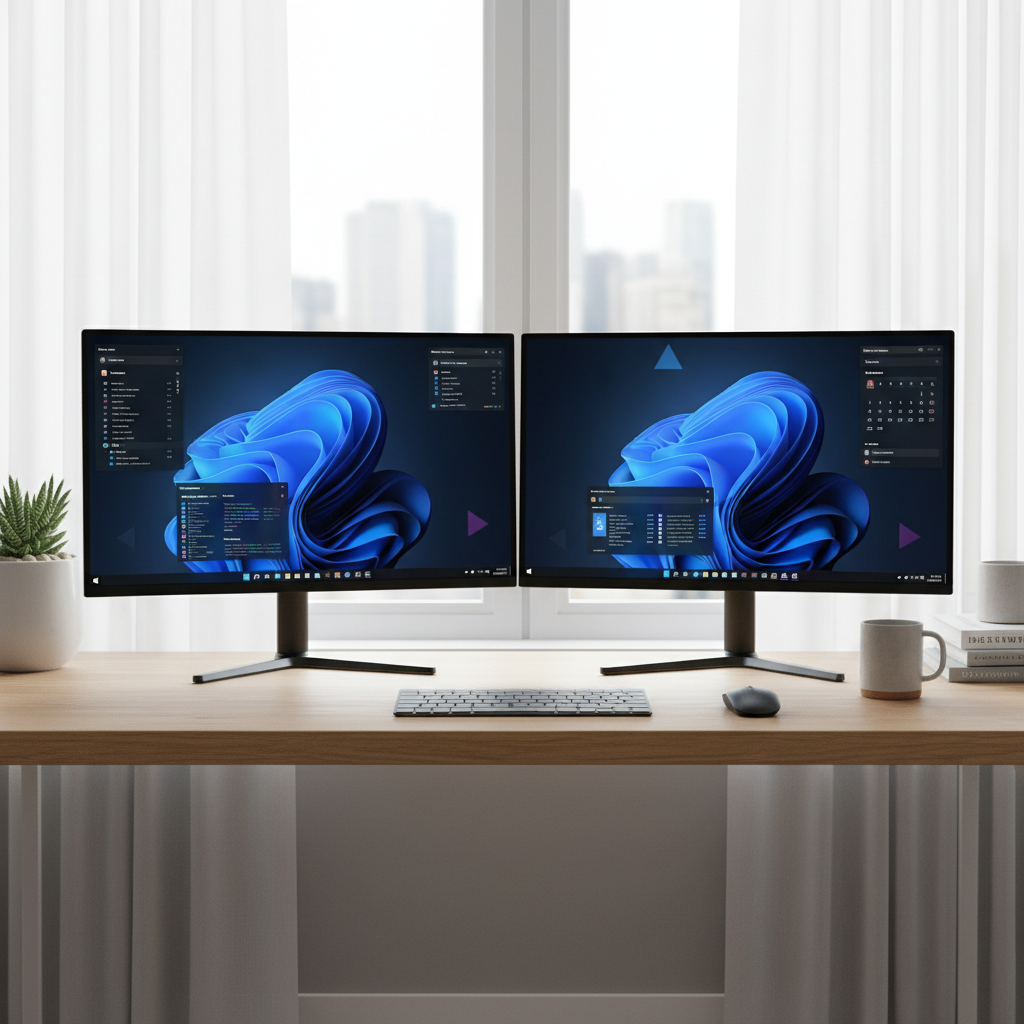
Setting up dual monitors on Windows is one of the most effective ways to boost productivity, improve multitasking, and create a more comfortable workspace. Whether you’re working from home, gaming, or managing multiple applications at once, a second screen makes a significant difference.
This guide walks you through the entire process of connecting two monitors using HDMI on a Windows PC, covering everything from hardware requirements to display settings.
Quick Answer
To set up dual monitors with HDMI on Windows, connect both monitors to your PC using HDMI cables, then right-click the desktop and select Display Settings. Windows will detect both screens automatically. Choose your preferred display mode, such as Extend, to use them as one large workspace. The whole process takes under five minutes.
Key Takeaways
- Most modern Windows PCs support dual monitors natively through multiple HDMI ports or a combination of HDMI and DisplayPort
- You need either two HDMI ports on your GPU or an HDMI splitter/adapter to connect two monitors
- Windows 10 and Windows 11 both support dual monitor setup through the Display Settings menu
- The Extend display mode is the most useful option for productivity and multitasking
- Refresh rate and resolution can be configured independently for each monitor
- If Windows does not detect the second monitor, updating your graphics driver usually resolves the issue
- HDMI 2.0 supports up to 4K at 60Hz, while HDMI 1.4 is limited to 4K at 30Hz
What You Need Before You Start
Before connecting anything, confirm you have the right hardware in place.
Hardware checklist:
- Two monitors with HDMI input ports
- A PC or laptop with at least two video output ports (HDMI, DisplayPort, or USB-C)
- Two HDMI cables (HDMI 2.0 recommended for higher resolutions)
- A dedicated GPU or integrated graphics that supports multiple displays
Most desktop PCs with a dedicated graphics card have two or more output ports. Laptops typically have one HDMI port, so you may need a USB-C to HDMI adapter or a docking station for the second display.
For a deeper look at how to plan and optimize your workspace, check out this guide on multiple monitor setup: everything you need to know.
Step-by-Step: How to Set Up Dual Monitors with HDMI on Windows
Step 1: Connect Both Monitors
Plug one end of each HDMI cable into a monitor and the other end into your PC’s video output ports. Power on both monitors.
Windows should detect the new display automatically within a few seconds. If it does not, proceed to the Display Settings step below.
Step 2: Open Display Settings
Right-click anywhere on your desktop and select Display Settings. On Windows 11, this opens the Settings app directly to the display configuration panel.
You should see two numbered display boxes representing each monitor. If only one appears, click the Detect button at the bottom of the page.
Step 3: Arrange Your Displays
Drag the numbered display boxes to match the physical layout of your monitors. For example, if your second monitor sits to the right of the first, drag box 2 to the right of box 1.
This ensures your mouse cursor moves naturally between screens without jumping.
Step 4: Choose Your Display Mode
Scroll down to the Multiple Displays dropdown and select your preferred mode:
- Extend these displays – Recommended for productivity. Each monitor acts as a separate workspace.
- Duplicate these displays – Both screens show the same content. Useful for presentations.
- Show only on 1 or 2 – Limits output to a single monitor.
For most users, Extend is the best choice.
Step 5: Set Resolution and Refresh Rate
Click on each monitor individually to configure its resolution and refresh rate. Set each to its Recommended resolution for the sharpest image.
If your monitor supports 144Hz but only shows 60Hz, this is a common issue worth addressing. Learn more in this article on why your 144Hz monitor may only be showing 60Hz.
For a complete walkthrough with visuals and additional tips, refer to this detailed guide on how to set up dual monitors with HDMI.
HDMI vs. DisplayPort for Dual Monitor Setups
| Feature | HDMI 2.0 | DisplayPort 1.4 |
|---|---|---|
| Max Resolution | 4K at 60Hz | 8K at 60Hz |
| Audio Support | Yes | Yes |
| Daisy Chaining | No | Yes |
| Common on Monitors | Very common | Common on gaming monitors |
| Cable Cost | Low | Low to moderate |
DisplayPort is generally the better choice for high refresh rate gaming monitors, while HDMI is more universally available and works well for productivity and general use.
Common Issues and How to Fix Them
Windows Does Not Detect the Second Monitor
This is the most frequent issue. Try these fixes in order:
- Check that the HDMI cable is firmly connected at both ends
- Try a different HDMI port on your GPU
- Restart your PC with both monitors connected
- Right-click the desktop, go to Display Settings, and click Detect
- Update your graphics driver through Device Manager or your GPU manufacturer’s software
Display Looks Blurry or Washed Out
This usually means the resolution is not set correctly. Go to Display Settings, select the affected monitor, and set the resolution to the recommended value.
If colors appear faded or gray, this may be an HDR configuration issue. This guide on why colors look washed out on HDR monitors explains the common causes and solutions.
Monitors Have Different Resolutions
Windows handles mixed-resolution setups well, but you may notice scaling differences. Set each monitor’s scaling independently under Scale and Layout in Display Settings.
Monitor Brands Worth Considering
| Brand | Best For | Price Range |
|---|---|---|
| MSI | Gaming and high refresh rate | Mid to high |
| Philips | Office and color accuracy | Mid range |
| Acer | Budget-friendly all-rounder | Budget to mid |
| AOC | Value gaming and productivity | Budget to mid |
| ViewSonic | Professional and color work | Mid range |
If you are shopping for a second monitor, these brand guides can help you make an informed decision: MSI monitors, Acer monitors, AOC monitors, and ViewSonic monitors.
Eye Strain and Long-Term Comfort
Working across two screens increases screen time, which can contribute to digital eye strain. Adjust brightness, enable night mode, and position monitors at eye level to reduce fatigue.
For practical tips on reducing discomfort, read this guide on how to prevent digital eye strain.
Conclusion
Setting up dual monitors on Windows using HDMI is a straightforward process that most users can complete in under five minutes. Connect your monitors, open Display Settings, choose Extend, and adjust resolution for each screen. The productivity gains are immediate and significant.
If you run into issues, driver updates and cable checks resolve most problems quickly. Once your setup is running smoothly, a dual monitor workspace is hard to go back from.
FAQs
Can I use two HDMI cables for dual monitors on Windows?
Yes, as long as your graphics card has two HDMI output ports. Most dedicated GPUs include at least two video outputs. If your GPU only has one HDMI port, you can use one HDMI and one DisplayPort cable.
Do I need a special HDMI cable for dual monitors?
No special cable is required. Standard HDMI 2.0 cables work well for most setups. If you need 4K at 60Hz, make sure both your cable and monitor support HDMI 2.0 or higher.
Why is my second monitor not detected in Windows?
The most common causes are a loose cable connection, an outdated graphics driver, or the monitor being powered off. Check connections first, then update your GPU driver and use the Detect button in Display Settings.
Can a laptop support dual monitors via HDMI?
Most laptops have one HDMI port, so adding a second external monitor typically requires a USB-C to HDMI adapter, a docking station, or a USB display adapter.
What display mode should I use for productivity?
Extend is the best mode for productivity. It treats both monitors as one large desktop, allowing you to drag windows between screens and keep multiple applications visible at the same time.
Does using dual monitors slow down my PC?
In most cases, no. Modern GPUs handle dual displays without any noticeable performance impact for general use. Gaming on one screen while running other apps on the second may have a minor effect depending on your GPU.
This article was last updated on August 18, 2026 .
